Saturday, 18 August 2018

How to Send Existing GIFs in WhatsApp on iPhone


1. How to Send Existing GIFs in WhatsApp on iPhone

With the latest version of WhatsApp installed on your iPhone, follow these simple steps to search for and send an existing GIF.


Open WhatsApp on your iPhone and then open the conversation you want to include a GIF on.


Tap on the “+” icon and then select “Photo & Video Library” from the menu that appears.


Tap on “GIF” at the bottom of the screen and you will see a number of GIFs on the screen. Find the one you want and then tap on the send icon to make it.


2. How to Send Live Photos as GIF in WhatsApp on iPhone

Those with the iPhone 6 or later can also send their Live Photos as GIFs. You need to first of all convert the Live Photo to GIF before sending it. Follow these simple steps to do it:


Open WhatsApp and then open a conversation. Tap on the “+” icon and select “Photo & Video Library”.

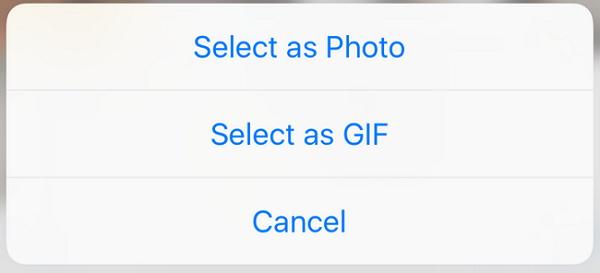
Locate the Live Photo you need to send and then press on it. When it pops out, slide upwards and then tap “Select as GIF”.


Now simply tap on the send icon to send the message.
3. How to Send Short Videso as GIF in WhatsApp on iPhone

Short videos can also be easily shared via WhatsApp as GIFs. Follow these simple steps to send a short video clip as GIF.


Launch WhatsApp and open the conversation. Click on the “+” icon and then select “Photo & Video Library” to select the video. Tap on the video.

This will bring you to the editing screen. In the top-right you should see a switch that can be used to convert the video to GIF. Click on GIF and you’ll be able to send the video as a GIF.


4. How to Add Favorite GIF into Star in WhatsApp on iPhone

If you have GIFs that you’d like to send again and again, you can add them to your Favorites in WhatsApp so they are easier to be found. Here’s how you can do that: If you accidentally deleted or lost videos on iPhone, first please check on the Recently Deleted folder. Alternatively, you can use the professional tool Gihosoft iPhone Recovery to recover deleted iPhone videos from Camera Roll or some apps.

Open any conversation in WhatsApp.


Tap and hold on any GIF and then tap on the star icon. For iPhone 6s or later, pick the GIF and swipe up to reveal the menu. Tap on “Star” to add it to favorites.


5. How to Make Your Own Animated GIFs on Your iPhone

If you don’t want to use the same GIFs for every message, you can make your own on the iPhone. Follow the following simple steps:


To create animated GIFs you need third-party apps. One of the best is GIPHY CAM. Install it on the iPhone and then launch it.


To upload the photos you want to use, tap on the Camera Roll icon. You can also record a small video to use.

You may also like:online youtube downloader

Sponsor Ads:Gihosoft Free iPhone Data Recovery is a professional iPhone Data Recovery software to get back all your lost text message, photo, video, call history, note, contact and more from iPhone/iPad/iPod Touch. It offers a full solution to recover your lost data in different tough situations. Besides recovering data directly from iPhone, iPad and iPod touch, it also allows you to recover data from iCloud and iTunes backup files.


Tap on the white arrow icon.You may also like:online youtube downloader


You can add and edit any filters and then tap “Next”.
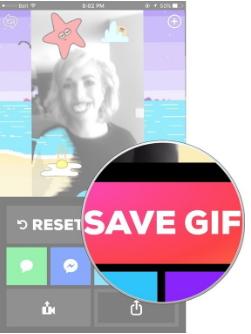


Save the GIF and you can now use the above ways to send it to your friends via WhatsApp.If you can’t sync with iTunes and want to rescue data from a disable iPhone, you could try Gihosoft iPhone Data Recovery. Also feel free to ask questions on the iDevice is disabled error in the comments section below.


Monday, 9 July 2018

Unlock Second-Hand iPhone in Recovery Mode 2018


Unlock Second-Hand iPhone in Recovery Mode

On the other hand, recovery mode can also be used to unlock second-hand iPhone. Depending on your iPhone’s model, use one of the guides below.
Step 1. Connect your second-hand iPhone to computer and open iTunes.
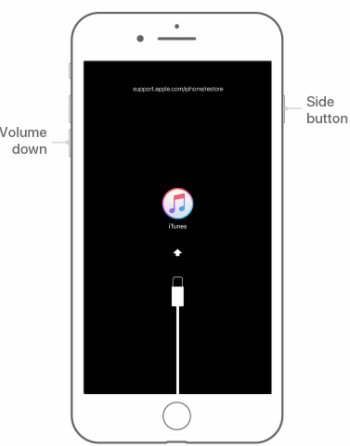
Step 2. While your device is connected, follow the steps below to put it into recovery mode:

For iPhone 8, iPhone 8 Plus, and iPhone X

  1. Press and release the Volume Up button quickly once.
  2. Repeat this with the Volume Down button.
  3. Press and hold down the Side button until you see the iTunes logo.
iPhone recovery mode

For iPhone 7 and iPhone 7 Plus

  1. Press the Volume Down and Side buttons and hold them down.
  2. When you see the iTunes icon you can release them.
iPhone recovery mode

For iPhone 6S and Earlier

  1. Hold down both the Home and Top/Side buttons.
  2. After the iTunes logo appears, release the buttons.
iPhone recovery mode
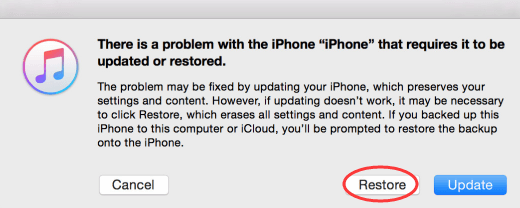
Step 3. When your iPhone is in recovery mode, you will see a window pop up on iTunes. Click “Restore”. This will download the firmware for your iPhone. If it takes over 15 minutes, your device will exit recovery mode. In this case, you need to repeat the steps 2 and 3.
restore iPhone
Step 4. Wait for it to finish. Then it’s done, you can set up your device.
Recovery mode takes longer than iMyFone LockWiper, but it still does the job.
Just like that you’ve unlocked your second-hand iPhone. There’s not much to this method and if anything is unclear, there’s plenty of guidance available.Sponsor Ads:
Gihosoft Free iPhone Data Recovery is a professional iPhone Data Recovery software to get back all your lost text message, photo, video, call history, note, contact and more from iPhone/iPad/iPod Touch.
Gihosoft Android data recovery Free is a super awesome software specialized in Android file recovery. With this program, you are able to recover deleted photos, music, videos, messages, contacts, call logs, WhatsApp messages, Viber chat history and more from Samsung, Huawei, LG, HTC, Motorola, Google, Oneplus, Sony, Lenovo, ZTE and other Android devices directly. Meanwhile, this Android data recovery software is available for both Windows and Mac platforms.


Sunday, 13 August 2017

4 killer features of iPhone 8 which will change the Smartphone industry

Apple is all set to launch the 10th edition of iPhone this year and lot is expected from the device. Today, in this article, we are going to talk about the 4 great killer features of iPhone 8. 


Bigger and bezel –less Display 
Borderless is better (and it's the future, anyway): less (bezel) means more (display). To date, big screens on the iPhone meant a big chassis. But the iPhone 8 is expected to have a much larger display (usable display area) than the 4.7-inch iPhone 7 despite being only slightly larger overall. That's due to the elimination of the bezels thanks to an edge-to-edge OLED display -- which should make the iPhone 8 pretty irresistible, even with an expected $1,000-plus price.


OLED Display  Must Read:how to delete games on ipad
Must Read:videos cache
Apple uses superb LCDs on its iPhones. But even the best LCD can't match an OLED display. I'm reminded of that every day when I switch between my iPhone 7 Plus (LCD) and Google Pixel XL (OLED). Technical niceties aside, the Pixel XL's screen is a lot more pleasing to the eye. And technically OLEDs are quickly surpassing LCDs in capabilities and quality. And, down the road, OLED iPhones will be curved and maybe even folded -- which doesn't appear to be a commercial possibility with LCDs.

Read More: These tips will help your iPhone battery last for more than a day


Face ID 
I use facial recognition on three 2017 Windows portables: it's fast and hands free. On my HP laptops it's instantaneous. If the iPhone 8 is that fast, it will be a godsend. (Note: on my tablet it's more problematic if it's not in a fixed position on a flat surface.) And other facial-recognition goodies may include the ability to "suppress notification sounds if you're looking at it," according to Guilherme Rambo, a software developer.
Smart Camera 


Let's not forget an improved camera: "Leaked" code hints at front and rear cameras capable of recording 4K video at 60 frames per second. And of course there will be other camera improvements that will continue to render stand-alone DSLRs obsolete for most consumers.

Hidden features of iOS which will help you enjoy your device more

Apple has released the iOS 11 and many of us are enjoying the new OS on our devices. If you are also one of them who has switched to iOS 11 then this article might not be relevant for you and you may close the tab or switch to a different article.


But if you are still using iOS 10 on your device and waiting for iOS 11 public update to upgrade then this post has some great information for you. In this article, we are going to talk about the some of the cool features of iOS 10 which will help you get the maximum out of your device.

Must Read: iOS 11 beta 4 reveals one of the cool features for iPhone and iPad users

Apple Mail

Fast Unsubscribe: emails with unsubscribe links will now automatically have them displayed at the top of each message with an easy to hit the button.


Unread Only: when viewing your mailbox, look for the filter icon (bottom left corner) and change the default setting to ‘Filtered by Unread’

Quick Actions: Swipe left on a message in the new threaded view and it will reveal quick actions such as a flag, reply, and trash.

Read More: These tips will help your iPhone battery last for more than a day

Camera


Don’t Stop the Music: Apple has stopped the camera mode automatically killing any music recording from the device the moment it is opened. Great if your phone is also the source of music for a party. Music still stops if you want to record a video or Live Photo.

Clock Must Read:clear search instagram

Bedtime Reminders: open the Clock app and you’ll find a new tab: ‘Bedtime’. This can be used to define the typical times you go to bed, wake up and the length of sleep you prefer. You then get reminders and along with tracking of your sleeping habits which can be viewed in the Health app.

Must ReadOne of the Biggest features of iPhone 8 has been removed


‘Close All’ Shortcuts

Safari - Close All Tabs: Quickly ditch your browser tabs on iPads with a long press on the Tab View button, which brings up the close all tabs options. iPhones require an extra step: open Tab View then long press on ‘Done’, to generate the option.

Notifications - Close All: Sick of the tiny ‘x’ on each notification? In iOS 10 you can remove them all at once with a 3D Touch iPhone. Just use a harder press on the X at the top of the list and you will get a ‘Clear All’ option. A really useful feature hidden behind the glamour or 'Rich Notifications'. Must Read:imyfone umate pro

Control Center

Quick Timer Options: bring up the Control Center and owners of 3D Touch enabled iPhones can use a harder press to bring up 1, 5, 20 and one hour instant timer options.


Calculator Memory: 3D touch the calculator icon in the Control Center and you can copy in the answer to your last calculation, saving precious time.

Camera shortcuts: just like the Camera icon on the homescreen, 3D Touch options have been extended to bring up specific shooting modes for the camera icon in the Control Center.

Monday, 5 June 2017

5 Top local Search Engine Optimisation (SEO) tips to put your business on the map to success

Having a robust local search marketing strategy, can support businesses reach new customers who are searching for location-specific services and products?

What is Local Search Marketing?

Local search marketing is the method of optimising your owned properties to generate traffic from location based searching. Customers are everywhere, in different locations, on various devices, and consuming different types of content. Thus, local search marketing is the art and science of ranking well in local search results.
According to Go Global, nearly half of searches on google are for local products and services. This means as a local business your search marketing strategy should be good so you are found every time on local searches. Showing up in local search is essential to your success, so let me expatiate on some local SEO tips that will support your business to be found on search results.
  1. Optimise your Uniform Resource Locator (URL), tags and Content

Your URL, title tags, headers, meta tags and content should mostly include your city or region and the target keyword of the page they describe. This shows Google what geographical location the page is relevant to and what content is on the page. This also helps google index your page adequately.
  1. Get listed on relevant review sites

Most customer’s decision-making are influenced by online reviews nowadays. How many times do you read reviews from website like feefo, amazon or eBay on a seller before making a purchase when it’s your first time? I can confidently assure you must online customers do this and this is why ecommerce website have loads on reviews to Review sites for SEOguarantee and reassure customers of their service and product offering. According to MOZ, online reviews make up 10% of how Google decides to rank your website page. This makes your presence on major review website very important. Below are some useful review website you should try and get your business listed on:
  • Yelp
  • Yellow Pages
  • Foursquare
  • Google+ Local
  • TripAdvisor
  • Yahoo Local
  1. Monitor your keywords rankings for local searches

Tracking your ranking on keywords search volume, device, result type and preferred URL at top of searches in each geographic location is quiet relevant to your business success in search results. In addition, create of form page segments and keyword categories so you can examine your data and isolate any ranking or performance drops or spikes so you can spot issues, opportunities, and seasonal changes.
This can be done be using a combination of SEO tools online that can help you do this if you are a search marketing expert. If not, it’s best to ask and have that conversation with your search-marketing agency you are using.
  1. Get listed on Google My Business

Get your business hours, phone number, and directions on Google Search and Maps — with Google My Business. Make sure your business info is accurate when customers search for you online. Is it the right address and website listed online?
Google My Business
Local searchers are primarily looking for a business’s address and location, and this free tool enables you to put your NAP (name, address and phone number) and other business information on Google Search and Maps – so make sure this is up to date.
Once you get verified through Google they will either call or send you a letter through the postal business address registered online.
  1. Make use of Schema Markup

Schema markup is code (semantic vocabulary) that you put on your website to help the search engines return further helpful results for users.
Below is an example of a local business that has markup on its event schedule page. The SERP entry looks like this:
Schema Markup
The schema markup told the search engine result page (SERP) to display a schedule of upcoming hotel events. This is useful information for the user and exceptionally helpful. In reality, Schema tells search engines what your data means, not just, what it says.
In conclusion, It’s not enough to stay on top of your Google My Business listing alone. As a business, you need to make sure your contact and location information is updated and consistent across your website, social media pages, review sites and directory listings as well. So make it a point update your NAP (name, address and phone numbers) plus make them consistent across all channels.Special Offer:
Win Piriform CCleaner Professional Giveaway (10 x Full Licenses) support by Group Buy SEO Tools http://www.bestseotools.cc https://www.piriform.com/ccleaner Mention this giveaway part on your blog, and send us link at doogeetop@gmail.com, you can a chance get free Piriform CCleaner Professional V5.30 license.

SEO Tips For Optimizing Your Local Google My Business Page 2017

The success of every online business depends on the marketing methods adopted to win businesses to it. Business owners know that marketing online is important and invest a lot of resources to embark on marketing campaigns. The common strategy adopted by many is to set up a few social media accounts and a create website for their business. Website does a lot for every business but the website is useless if people cannot find it. To get people to find your business, you have to get your business available where people are and then they can easily find it. That is in Google.
Google accounts for about 70% of online searches are conducted via Google, and one out of every five of those searches is regarding a business or place. That’s where Google My Business comes in. It’s a service that allows the physical location of your business to be found on Google Maps, letting customers track you down more easily. If you don’t have your business listed on Google My Business, you need to put this on the top of your “to do” list immediately. It’s one of the best things you can do to expand your customer base and get easily found by those who are searching for business to serve their needs.

Also read: SEO -  3 Important SEO Considerations Good for E-Commerce Websites
What Are the Benefits of Google My Business?

It Serves as an Easy-to-Reach Directory
Gone are the days when people reached for a phone book if they needed a specific service. Google My Business serves today’s directory, especially for local businesses. Even if you don’t have a website, customers can search for your category (e.g. plumber, bakery, or photographer) and see a list of local businesses in that field.

You’re Easier to Find
When your business is listed with Google Maps, your exact address and location is given to customers. They don’t have to wade through the “contact us” section of a website or click through your Facebook profile to find out where you are. If customers are searching using their mobile device, Google Maps includes GPS navigation, providing turn-by-turn directions to your door.

Also read: 20 Ways You Can Reduce Your Website Bounce Rate

It’s Free Advertising
Being listed in Google maps provides free advertising for your business. Today’s search resuls also provide info on some businesses as found in Google maps. Free advertising is what you get with Google My Business. Even if your small business does have a budget for advertising, you can still take advantages everything you can and advertise to customers in your area for no charge. Google My Business offers this great benefit.

How to Use Google My Business Optimally

Nowadays, an optimized Google My Business profile & listing becomes more and more important for businesses as it allows you to increase your business exposure and search traffic. In this way, businesses can appear on queries that match their products/services in local search results.

Also read: Checklist Of SEO Best Practices That Will Drive Trafic To Your Website

Below you will find some tips to help you add value to your business listing.

1. Make sure your contact details are correct

Follow the Location Verification process It is very important to provide your physical address, your phone number, your website URL and your accurate business hours.

2. Add your Complete Business Info

In the “About” menu of your Google+ Page, you can add a tagline and an introduction with links and chosen keywords to your business which will become your meta-description. Try to make your “story” as compelling as possible to encourage CTR with features as sub headers, bullet points and short paragraphs. Don’t forget to keep it updated.

Also read:  How to build your website trust and credibility
3. Emphasize on the category

Categorize your business listing so as to make it easier for your customers to find you on the network, but also make your business stand out from the other pages of similar interests.

4. Perform regular updates on your content

Once a week you need to update your Google+ page with posts so as to help Google index your content faster. An easy way to do that is to also share the content that you publish on your other social media pages to your Google+ page but if you have time it would be even better to create unique content in Google+ and more oriented to Google+ communities.

Also read: Useful URL Structuring Tips That Will Help Higher Ranking

5. Add photos and videos to empower your message

Add photos to your Google+ page so as to show people your products/services and how your business looks like. These are the photos you can upload: A Profile Photo, A Logo Photo and a Cover Photo. Google+ also gives you the chance to add animated GIFs.

6. Optimize Your Posts

The first 45-50 characters of your Google+ posts should contain keywords as they become that post’ page titles in Google’s search results. Post regularly, include famous hashtags and try to accompany your posts with photos, industry news, events in town, employee or sales announcements or posts that answer questions that customers have set. Also don’t hesitate to add videos with keywords.

Also read:  7 SEO Tips That Will Help Your Website Rankings, Yet Are Not Often Talked About

7. Claim Your Page’s Custom URL

If you have set up your Google+ page for over than 30 days and you’ve got a profile photo and more than 10 followers, you can claim a custom URL that matches your brand. This custom URL will be much easier discovered and shared. 

8. Build Your Page’s ‘Link’ Section

Every Google+ page gives you the opportunity to add links essential to your business in the ‘Links’ section. You could add a link to your website, your blog, your social media pages or any page you want to drive traffic to and from.

9. Link Your Website to Your Google+ Page

You will have to verify your website in the Search Console. Then, link your Google+ page to your website via Google+ Settings and allow your Google+ page to appear in the right side of search results and provide an inbound link to your website. Add also a Google+ badge on your Website to show people that you also have a social presence there. Finally, don’t forget to also implement rel publisher to link google+ page with the website (a webmaster is required) and select the feature in the page “link my website”. Format of the request for rel publisher:

Add in every page inside the head of the website

<link href=” g+ page URL” rel=”publisher”/>

10. Engage with others

Start adding people relevant to your business to your circles and then the majority of them will add you as well. Adding people to your circles, following and interacting with others in your industry will give your business page more exposure and trigger the sharing of your posts. Also do not neglect to join Google Plus communities (they are like Facebook Groups, Online Forums etc.) related to your location and interests. Make comments; participate in relevant discussions and hangouts.

11. Measure your actions

Now that you have had your Google+ listing and business page set up and optimized, you need to track your Google+ success. Check your Google My Business Insights and Google Analytics for traffic from your Google+ Page, behavior data and control if any of your posts resulted in conversions.

Final Words

To be able to optimally use your Google My Business page to the full benefit of your business, remember to implement the following as you optimize your page:.

Use Keywords
Filling out the keywords and category section of your profile may be the most important step. Write a product description or a description of your business that’s appealing and describes what you do. However, don’t overdo it on the keywords, as that could actually cause your ranking to decrease.

Utilize Images and Videos
A business that is listed on Google My Business is allowed to add up to 10 images and five videos at no charge. Again, this is free advertising, so make the most of it! Include pictures of the outside of your establishment so visitors know exactly what they’re looking for when trying to find you.

Create a Google My Business Page for Every Location
If your business has multiple locations, creating one overall Google My Business listing isn’t going to do the job. Have a different listing for each location with its specific address and phone number. If your business serves multiple cities, create a single page and list those multiple cities in your description.

Encourage Customer Reviews
If you have satisfied customers, ask them to share their experiences and rate your services on Google My Business. It seems simple, but a better rating truly will attract more customers in a big way. Make sure you have genuine reviews, though. If you have reviews that Google thinks aren’t authentic, or it appears that you’re simply soliciting reviews for a higher rating, your listing could actually be pushed down.Special Offer:
Win Piriform CCleaner Professional Giveaway (10 x Full Licenses) support by Group Buy SEO Tools http://www.bestseotools.cc https://www.piriform.com/ccleaner Mention this giveaway part on your blog, and send us link at doogeetop@gmail.com, you can a chance get free Piriform CCleaner Professional V5.30 license.

Apple Funds Corning With an Additional $250 Million For Next-Gen Glass Development

Apple will be awarding Corning an additional $250 million from its Advanced Manufacturing Fund. This will be on top of the $200 million fund...