Sunday, 24 February 2019
20 Common iOS 12 Beta Problems You Should Know Now
The new iOS 12 should be with us very soon and if memories of the iOS 11 release are anything to go by, iOS 12 will have some issues. In fact, those who have already installed the beta build have already experienced some issues. The following are just some of the issues iOS 12 beta users have faced so far. We expect that Apple will fix most of them before the public release.
Common iOS 12 Beta Issues
1. Diminished Battery Life
Those running the iOS 12 beta have reported a diminished battery life for both iPhone s and iPads. It is already clear that iOS 12 doesn’t provide a great battery life.
2. Sluggish Performance
It is also quite a bit slower when scrolling through content especially for third-party apps. Scrolling through lists of data was especially slow.
3. Apps Go into “Wiggle” mode Unexpectedly
There is a bug in iOS 12 that puts all the app icons in “wiggle” mode as soon as a user leaves the apps folder or the home screen. While this bug may not be too stressful, it may become annoying at time.
4. Bluetooth Problems
Some users have even experienced issues with Bluetooth connectivity where some devices simply won’t connect to the device’s Bluetooth. This problem can simply be fixed by “Forgetting the Device” and then reconnecting it.
5. App Store no Longer Refreshes
Tapping the App Store tab multiple times no longer refreshes the App Store. This isn’t a huge problem and we expect that it will be fixed before the public release.
6. Spotlight Search Issue
If you pull down on the Home Screen you should access the Spotlight Search. There is a bug in iOS 12 beta that disables this function and you can no longer access Spotlight in this way.
7. Cellular Data Problems
In iOS 12 you may experience issues with cellular data problems where connectivity speeds can either be slower than normal or the connection is unstable. Sometimes this may be a coverage issue. So, before you seek more drastic solutions, check with your carrier to determine if there is coverage in your area.
8. Wi-Fi Issues
In much the same way, users have also experienced problems with Wi-Fi; either slow speeds or lack of connectivity. Check that the router is working correctly before trying any drastic solutions.
9. App Icons Disappearing
It is a minor issue but an annoying one nonetheless. A bug causes the app icons to disappear briefly only to reappear when navigating in or out of folders.
10. Wallpaper Issue
iOS 12 Beta users are also experiencing problems with the wallpapers where the lock screen sometimes shows the home screen wallpaper instead of the lock screen wallpaper. Restarting your iPhone should fix the problem.
11. AirPod Problems
Users have also experienced issues with AirPods where they either fail to connect or only one connects. If this happens, take both AirPods out and then put them both inside the case, close the case and wait for 5-10 seconds. Take them out with the case next to the phone.
12. Touchscreen Issues
Users have also reported unresponsive screens or a screen that is slow to respond. Restarting the device should fix this issue.
13. Random Reboots
Beta users who experience lag, random reboots and lockups have reported that a simple restart of the device fixes the issue quickly. If a restart doesn’t work you may need to reset the speed of the home button. You can do that by going to Settings > General > Accessibility > Home button
14. App Problems
App downloads and app updates are also quite problematic with iOS 12 beta. Restarting the device and retrying the download seems to work. If the issues you are facing have to do with performance simply updating the app or reinstalling it should work.
15. Sound Problems
Some iOS 12 Beta users have reported that the sound can suddenly just cut out on the home screen while using an app. Restarting the iPhone or iPad should fix the problem. Toggling the Bluetooth off and on should also fix the problem. If the sound issues are coming from a specific app, updating the app should help.
16. 3D issues
3D also has a few issues with the iOS 12 Beta. 3D gestures don’t always work as expected. Again, simply restarting the device will fix the problem.
17. Inactive “Send” Button
Sometimes the “Send” button can simply become inactive when composing and sending emails in the “Mail” app. A few minutes of waiting usually solves the problem though.
18. iPhone Freezes when Charging
Your iPhone can also simply freeze during charging. This issue is quite common and a simple restart should fix it once and for all.
19. Drag and Drop Problems
The Drag and drop feature in iPhone and iPad is supposed to be system-wide, yet come users have reported that it fails to work within some apps.
20. Home App Issues
The home app is also experiencing some user interface issues and may fail to work as expected. Apple should fix the problem before the public build is released.
Sponsor ads:
Jihosoft iPhone Data Recovery:https://www.jihosoft.com/recovery/ios-data-recovery.html
Jihosoft iPhone Data Recovery
Free iPhone Data Recovery Software for Windows/Mac
Recover up to 12+ types of files, including contacts, SMS, photos, WhatsApp, Viber, notes, etc.
Restore lost data from iOS devices directly or from iTunes and iCloud backup
Recover iPhone data lost due to iOS upgrade/jailbreak, accidental deletion, device lost or broken
Support all the latest iPhone, iPad and iPod Touch.
Tips:
How to transfer messages from iPhone to iPhone
Gihosoft Free iPhone Data Recovery:https://www.gihosoft.com/iphone-data-recovery-free.html
Gihosoft iPhone Data Recovery Free

Friday, 22 February 2019
How to Fix iPhone Stuck on Apple Logo during iOS 12 Beta Downgrade
The iOS 12 beta offers really cool new features that will really transform the way you use your device. But is also comes with a number of issues that can really render your device unusable. If you downloaded the beta and have now changed your mind, downgrading to iOS 11.4 is quite easy to accomplish. Most of the time it simply involves putting the device in recovery mode and allowing iTunes to restore and update the device, an action that should install iOS 11.4 on your device.
That said, downgrading your build is a major change to the device and can also cause some issues with the device. One of these issues is a device that remains stuck on the Apple Logo. If this is what you encountered while trying to downgrade iOS 12 beta, we will offer you some solutions that may work.Sponsor ads:Best Free Video Converter for Windows and Mac
Must Read:If you lost data after you updated to a new iPhone, you can always use Gihosoft iPhone Data Recovery to get the data back from the old iPhone or backup.
Gihosoft Free iPhone Data Recovery:iphonerecovery.com
If you use android phones, please choose Gihosoft Android Data Recovery
1 Force Restart the iPhone/iPad
If your device gets stuck while downgrading from iOS 12 beta to iOS 11.4, one of the simplest solutions to the problem can be to force restart it. You can do this by holding down the Sleep/Wake and Home (Volume, if you are using iPhone 7) buttons for at least 10 seconds or until you see the Apple Logo.
Put Your Device in Recovery Mode and Restore It
You can also try to put the device in recovery mode and then plug it into iTunes to restore it. The following is a step by step guide to help you do that.
Step 1: Open iTunes on your computer and make sure that it’s updated. If it’s not, take a moment to install the updated version.
Step 2: To put your device in recovery mode, press and hold the Home button (volume button for iPhone 7) and connect a lightning cable to the device (without connecting the other end to the computer). Keep holding the button and only let it go when you see the iTunes logo on the screen.

Step 3: Now connect the other end of the cable to the computer and iTunes will display a message saying a device in recovery mode has been detected. Click on “Restore” to allow iTunes to restore your device to the latest backup.

We hope your device is back to normal and that you are now able to use it without any further issues. Let us know how it works out for you.
Thursday, 21 February 2019
iPhone Contacts Missing Names? Here Is the Fix! 2019 Guide
1. Check iCloud Settings
One of the easiest ways to bring back your missing names is to turn on contacts in iCloud. To do this, go to Settings > iCloud and make sure that Contacts toggle is on. If it’s not, turn it on.
2. Toggle iCloud Contacts Off/On
If your contacts in iCloud is turned on and your contacts are still missing the names. Do the following:
Step 1: Go to Settings > iCloud and turn the Contacts toggle off.
Step 2: You will be asked to delete or keep previously synced contacts. Choose “Delete from My iPhone”. Don’t worry you will not be losing anything, your contacts are still in iCloud.
Step 3: Now turn Contacts on and your iCloud contacts should now be back on your device.

3. Ask Siri to Restore the Contacts
Another way to get your contacts back is to ask Siri to bring them back. Sure, Siri has been known to have some issues but if you configured her correctly, she should able to help. It’s at least worth a try.

4. Check If Your Contacts Are Synced to Your Google Account
Foe many users, the iCloud solution for may fail because their contacts are synced to their Google account and they are unaware of this. If you think you may have synced your contacts with Google instead, follow these simple steps to get them back.
Step 1: Open the Settings app and the go to “Contacts”.
Step 2: Choose “Accounts”>“Gmail”and select your Google account.Make sure that “Contacts” is toggled ON. If it’s not, turn it on to get your contacts back.

5. Did You Delete an Email Account Recently?
It is also quite likely that you may have deleted an exchange email account you no longer use and your contacts may have been imported into that email. In this case, the solution is quite simple. Simply re-add the email account you recently deleted to get your contacts back to normal.

6. Tip: Backup Contacts Using a Free iPhone Backup Tool
Sponsor ads:
Gihosoft Free iPhone Data Recovery:https://www.gihosoft.com/iphone-data-recovery-free.html
Gihosoft iPhone Data Recovery Free
Free iPhone Data Recovery Software for Windows/Mac
Recover up to 12+ types of files, including contacts, SMS, photos, WhatsApp, Viber, notes, etc.
Restore lost data from iOS devices directly or from iTunes and iCloud backup
Recover iPhone data lost due to iOS upgrade/jailbreak, accidental deletion, device lost or broken
Support all the latest iPhone, iPad and iPod Touch
Both Free and Pro version.
If you lost data after you updated to a new iPhone, you can always use Gihosoft iPhone Data Recovery to get the data back from the old iPhone or backup.You may also like: iphonerecovery.com
With Gihosoft Android Data Recovery, no longer afraid of data loss!
Must read:Youtube video downloader for pc
Gihosoft RePicvid Free Photo Recovery Software provides a free photo recovery software for windows to help users recover the deleted or lost photo for free.
Jihosoft Android Data Recovery: the best Android Data Recovery software for Windows and Mac to recover deleted contacts, messages, photos, videos, WhatsApp and etc from Android devices.Tips:How to transfer messages from iPhone to iPhone
Wednesday, 20 February 2019
Transfer Music from Computer to iPhone 8/X? 2 Ways!
02 Transfer Music from Computer to iPhone 8/X Using Dropbox
You are not limited to certain apps which allow you to connect your iOS devices for downloading music to your iPhone. You can use the services of Dropbox which is another easiest way of computer to iPhone 8/X music transfer. Here are simple guide in steps:
Open Dropbox or go to Dropbox.com from your computer and sign in with your user ID.
Click ‘Upload’ icon at top of page, select your file ‘Choose file’ located in the pop-up window.
Locate your favorite songs in your computer and upload as many as you can.
Open Dropbox application from your iPhone and listen to your songs. You can also download them to the local. DONE!

03 Transfer Music from Computer to iPhone 8/X Using iTunes
iTunes would be basic and next possible solution to your problem. Here are simple guide of your query how can I transfer music from computer to iPhone 8/X:Sponsor ads:Best Free Video Converter for Windows and Mac
Must Read:If you lost data after you updated to a new iPhone, you can always use Gihosoft iPhone Data Recovery to get the data back from the old iPhone or backup.
Gihosoft Free iPhone Data Recovery:iphonerecovery.com
If you use android phones, please choose Gihosoft Android Data Recovery
Step 1: Add Music from Computer to iTunes library
Install latest version of iTunes into your computer and launch it.
Go to “File > Add File to Library” from the top menu.
You can locate your music files on computer and select them to transfer.
And your music files are added into your iTunes library. iTunes library works as a bridge in this case.
Step 2: Sync Music to iPhone from iTunes
Connect your iPhone to computer.
Click the device icon at the top left corner on iTunes.
Choose “Music” from the left sidebar.
Check “Sync Music” at the right panel and you can select all music or some specific ones.
Once done, hit “Sync” button at the bottom.

Note
The existing music on iPhone will be erased when syncing.
If your iPhone has been synced with other iTunes library or computer, everything will be removed from your iPhone.
What’s more, if it is the first time you sync music from this computer, you will lose all media files on your iPhone.This is the limits of iTunes sync.
BTW, iTunes only supports some specific music formats, like MP3, AAC, etc. You need to convert music first if they are not the supported ones.
Bonus Tips - If Music Won't Play on iPhone 8/X After iTunes Sync
Sometime music won’t play to your iPhone after syncing to iTunes; this error comes due to lower version of iOS into your iPhone. We have a quick fix solution so that you will never experience such issue again:
Tip 1: Update your iTunes to the latest version - On your iTunes, click on “Help > Check for Updates”.
Tip 2: Reauthorize your computer as iTunes may forgot the authorization - On iTunes, go to “Account > Authorization > Authorize This Computer”.

Tip 3: Re-sync you iPhone - If you synced your iPhone over Wi-Fi at the first time, you can try to sync it again with USB cable. Cable connection will be more stable than Wi-Fi.
Tip 4: Remove music from iTunes library and iPhone and sync again.
Tip 5: Add music to iTunes library again and sync to your iPhone again.
Tip 6: If nothing works, back up your iPhone data to iTunes and restore it to factory default. After that, restore the backup from iTunes to iPhone.
Tip 7: Use iPhone Transfer tool to download music into iPhone. It will not have this issue.
Tuesday, 15 January 2019
Recover WeChat Contacts from iTunes Backup
Recover WeChat Contacts from iTunes Backup
If on the other hand you have a backup of your WeChat data on iTunes, the best way to get it back is to restore the iPhone in iTunes. Here’s how to do it:
Step 1: Launch iTunes on your computer and connect the iPhone to the device using USB cables.
Step 2: Select the iPhone when it appears in iTunes and then click on “Restore Backup”.
Step 3: Select the most relevant backup and then click “Restore”. Wait for the process to finish. You may be required to enter your password if the backup you selected was encrypted.

Note
But this approach has its disadvantages. The following are just some of them:
First, for this solution to be successful, you must have an iTunes backup. You must also be sure that the iTunes backup file contains the missing WeChat contacts.
By restoring the iTunes backup, the existing data on the device will be be permanently erased. In other words, if there are photos, contacts, messages and other data on the device that is not included in any of the backup, they will be permanently erased and can’t be recovered.
You are also unable to see the contents of the backup file which means it is possible to choose a wrong backup to restore.
Sponsor ads:
Gihosoft Free iPhone Data Recovery:https://www.gihosoft.com/iphone-data-recovery-free.html
Gihosoft iPhone Data Recovery Free
Free iPhone Data Recovery Software for Windows/Mac
Recover up to 12+ types of files, including contacts, SMS, photos, WhatsApp, Viber, notes, etc.
Restore lost data from iOS devices directly or from iTunes and iCloud backup
Recover iPhone data lost due to iOS upgrade/jailbreak, accidental deletion, device lost or broken
Support all the latest iPhone, iPad and iPod Touch
Both Free and Pro version.
If you lost data after you updated to a new iPhone, you can always use Gihosoft iPhone Data Recovery to get the data back from the old iPhone or backup.You may also like: iphonerecovery.com
If you use android phones, please choose Gihosoft Android Data Recovery.
With Gihosoft Android Data Recovery, no longer afraid of data loss!
Must read:Youtube video downloader for pc
Gihosoft RePicvid Free Photo Recovery Software provides a free photo recovery software for windows to help users recover the deleted or lost photo for free.
Jihosoft Android Data Recovery: the best Android Data Recovery software for Windows and Mac to recover deleted contacts, messages, photos, videos, WhatsApp and etc from Android devices.Tips:How to transfer messages from iPhone to iPhone
jihosoft Free iPhone Data Recovery
Saturday, 18 August 2018
How to Send Existing GIFs in WhatsApp on iPhone
1. How to Send Existing GIFs in WhatsApp on iPhone
With the latest version of WhatsApp installed on your iPhone, follow these simple steps to search for and send an existing GIF.
Open WhatsApp on your iPhone and then open the conversation you want to include a GIF on.
Tap on the “+” icon and then select “Photo & Video Library” from the menu that appears.
Tap on “GIF” at the bottom of the screen and you will see a number of GIFs on the screen. Find the one you want and then tap on the send icon to make it.

2. How to Send Live Photos as GIF in WhatsApp on iPhone
Those with the iPhone 6 or later can also send their Live Photos as GIFs. You need to first of all convert the Live Photo to GIF before sending it. Follow these simple steps to do it:
Open WhatsApp and then open a conversation. Tap on the “+” icon and select “Photo & Video Library”.
Locate the Live Photo you need to send and then press on it. When it pops out, slide upwards and then tap “Select as GIF”.

Now simply tap on the send icon to send the message.
3. How to Send Short Videso as GIF in WhatsApp on iPhone
Short videos can also be easily shared via WhatsApp as GIFs. Follow these simple steps to send a short video clip as GIF.
Launch WhatsApp and open the conversation. Click on the “+” icon and then select “Photo & Video Library” to select the video. Tap on the video.
This will bring you to the editing screen. In the top-right you should see a switch that can be used to convert the video to GIF. Click on GIF and you’ll be able to send the video as a GIF.

4. How to Add Favorite GIF into Star in WhatsApp on iPhone
If you have GIFs that you’d like to send again and again, you can add them to your Favorites in WhatsApp so they are easier to be found. Here’s how you can do that: If you accidentally deleted or lost videos on iPhone, first please check on the Recently Deleted folder. Alternatively, you can use the professional tool Gihosoft iPhone Recovery to recover deleted iPhone videos from Camera Roll or some apps.
Open any conversation in WhatsApp.
Tap and hold on any GIF and then tap on the star icon. For iPhone 6s or later, pick the GIF and swipe up to reveal the menu. Tap on “Star” to add it to favorites.

5. How to Make Your Own Animated GIFs on Your iPhone
If you don’t want to use the same GIFs for every message, you can make your own on the iPhone. Follow the following simple steps:
To create animated GIFs you need third-party apps. One of the best is GIPHY CAM. Install it on the iPhone and then launch it.
To upload the photos you want to use, tap on the Camera Roll icon. You can also record a small video to use.
You may also like:online youtube downloader
Sponsor Ads:Gihosoft Free iPhone Data Recovery is a professional iPhone Data Recovery software to get back all your lost text message, photo, video, call history, note, contact and more from iPhone/iPad/iPod Touch. It offers a full solution to recover your lost data in different tough situations. Besides recovering data directly from iPhone, iPad and iPod touch, it also allows you to recover data from iCloud and iTunes backup files.
Tap on the white arrow icon.You may also like:online youtube downloader
You can add and edit any filters and then tap “Next”.
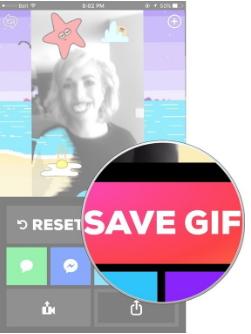
Save the GIF and you can now use the above ways to send it to your friends via WhatsApp.If you can’t sync with iTunes and want to rescue data from a disable iPhone, you could try Gihosoft iPhone Data Recovery. Also feel free to ask questions on the iDevice is disabled error in the comments section below.
Monday, 9 July 2018
Unlock Second-Hand iPhone in Recovery Mode 2018
Unlock Second-Hand iPhone in Recovery Mode
On the other hand, recovery mode can also be used to unlock second-hand iPhone. Depending on your iPhone’s model, use one of the guides below.
Step 1. Connect your second-hand iPhone to computer and open iTunes.
Step 2. While your device is connected, follow the steps below to put it into recovery mode:
For iPhone 8, iPhone 8 Plus, and iPhone X
- Press and release the Volume Up button quickly once.
- Repeat this with the Volume Down button.
- Press and hold down the Side button until you see the iTunes logo.

For iPhone 7 and iPhone 7 Plus
- Press the Volume Down and Side buttons and hold them down.
- When you see the iTunes icon you can release them.
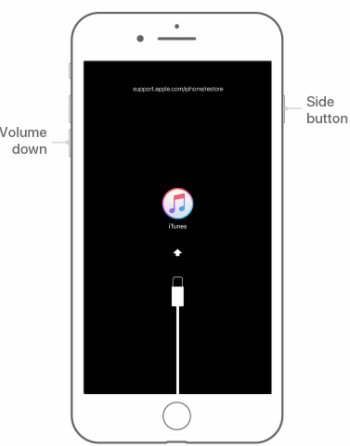
For iPhone 6S and Earlier
- Hold down both the Home and Top/Side buttons.
- After the iTunes logo appears, release the buttons.

Step 3. When your iPhone is in recovery mode, you will see a window pop up on iTunes. Click “Restore”. This will download the firmware for your iPhone. If it takes over 15 minutes, your device will exit recovery mode. In this case, you need to repeat the steps 2 and 3.
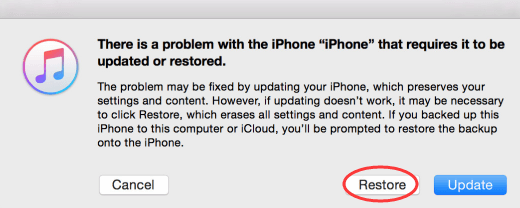
Step 4. Wait for it to finish. Then it’s done, you can set up your device.
Recovery mode takes longer than iMyFone LockWiper, but it still does the job.
Just like that you’ve unlocked your second-hand iPhone. There’s not much to this method and if anything is unclear, there’s plenty of guidance available.Sponsor Ads:
Gihosoft Free iPhone Data Recovery is a professional iPhone Data Recovery software to get back all your lost text message, photo, video, call history, note, contact and more from iPhone/iPad/iPod Touch.
Gihosoft Android data recovery Free is a super awesome software specialized in Android file recovery. With this program, you are able to recover deleted photos, music, videos, messages, contacts, call logs, WhatsApp messages, Viber chat history and more from Samsung, Huawei, LG, HTC, Motorola, Google, Oneplus, Sony, Lenovo, ZTE and other Android devices directly. Meanwhile, this Android data recovery software is available for both Windows and Mac platforms.
Subscribe to:
Posts (Atom)
Apple Funds Corning With an Additional $250 Million For Next-Gen Glass Development
Apple will be awarding Corning an additional $250 million from its Advanced Manufacturing Fund. This will be on top of the $200 million fund...

-
Though it sounds simple, it isn’t. Organising the search keywords to form a valuable group isn’t as easy as most of the people think it to ...
-
And while these entities do have the advantage of age and years of search engine optimization on their side, small businesses can still com...
-
SoundHound is a popular streaming platform for music fans, and now it’s getting a new way to share the songs and artists you like through In...


