Thursday, 21 February 2019

iPhone Contacts Missing Names? Here Is the Fix! 2019 Guide

1. Check iCloud Settings

One of the easiest ways to bring back your missing names is to turn on contacts in iCloud. To do this, go to Settings > iCloud and make sure that Contacts toggle is on. If it’s not, turn it on.

2. Toggle iCloud Contacts Off/On

If your contacts in iCloud is turned on and your contacts are still missing the names. Do the following:
Step 1: Go to Settings > iCloud and turn the Contacts toggle off.
Step 2: You will be asked to delete or keep previously synced contacts. Choose “Delete from My iPhone”. Don’t worry you will not be losing anything, your contacts are still in iCloud.
Step 3: Now turn Contacts on and your iCloud contacts should now be back on your device.
Toggle iCloud Contacts Off/On

3. Ask Siri to Restore the Contacts

Another way to get your contacts back is to ask Siri to bring them back. Sure, Siri has been known to have some issues but if you configured her correctly, she should able to help. It’s at least worth a try.
 Ask Siri to Restore the Contacts

4. Check If Your Contacts Are Synced to Your Google Account

Foe many users, the iCloud solution for may fail because their contacts are synced to their Google account and they are unaware of this. If you think you may have synced your contacts with Google instead, follow these simple steps to get them back.
Step 1: Open the Settings app and the go to “Contacts”.
Step 2: Choose “Accounts”>“Gmail”and select your Google account.Make sure that “Contacts” is toggled ON. If it’s not, turn it on to get your contacts back.
Check if Your Contacts are Synced to Your Google Account

5. Did You Delete an Email Account Recently?

It is also quite likely that you may have deleted an exchange email account you no longer use and your contacts may have been imported into that email. In this case, the solution is quite simple. Simply re-add the email account you recently deleted to get your contacts back to normal.
 Did you Delete an Email Account recently?

6. Tip: Backup Contacts Using a Free iPhone Backup Tool

Sponsor ads:
Gihosoft iPhone Data Recovery Free
Free iPhone Data Recovery Software for Windows/Mac
Recover up to 12+ types of files, including contacts, SMS, photos, WhatsApp, Viber, notes, etc.
Restore lost data from iOS devices directly or from iTunes and iCloud backup
Recover iPhone data lost due to iOS upgrade/jailbreak, accidental deletion, device lost or broken
Support all the latest iPhone, iPad and iPod Touch
Both Free and Pro version.
If you lost data after you updated to a new iPhone, you can always use Gihosoft iPhone Data Recovery to get the data back from the old iPhone or backup.You may also like: iphonerecovery.com
If you use android phones, please choose Gihosoft Android Data Recovery.
With Gihosoft Android Data Recovery, no longer afraid of data loss!
Gihosoft RePicvid Free Photo Recovery Software provides a free photo recovery software for windows to help users recover the deleted or lost photo for free.
Jihosoft Android Data Recovery: the best Android Data Recovery software for Windows and Mac to recover deleted contacts, messages, photos, videos, WhatsApp and etc from Android devices.Tips:How to transfer messages from iPhone to iPhone

Wednesday, 20 February 2019

Transfer Music from Computer to iPhone 8/X? 2 Ways!


02 Transfer Music from Computer to iPhone 8/X Using Dropbox

You are not limited to certain apps which allow you to connect your iOS devices for downloading music to your iPhone. You can use the services of Dropbox which is another easiest way of computer to iPhone 8/X music transfer. Here are simple guide in steps:


Open Dropbox or go to Dropbox.com from your computer and sign in with your user ID.


Click ‘Upload’ icon at top of page, select your file ‘Choose file’ located in the pop-up window.


Locate your favorite songs in your computer and upload as many as you can.


Open Dropbox application from your iPhone and listen to your songs. You can also download them to the local. DONE!


03 Transfer Music from Computer to iPhone 8/X Using iTunes

iTunes would be basic and next possible solution to your problem. Here are simple guide of your query how can I transfer music from computer to iPhone 8/X:Sponsor ads:Best Free Video Converter for Windows and Mac

Must Read:If you lost data after you updated to a new iPhone, you can always use Gihosoft iPhone Data Recovery to get the data back from the old iPhone or backup.

Gihosoft Free iPhone Data Recovery:iphonerecovery.com

If you use android phones, please choose Gihosoft Android Data Recovery
Step 1: Add Music from Computer to iTunes library


Install latest version of iTunes into your computer and launch it.


Go to “File > Add File to Library” from the top menu.


You can locate your music files on computer and select them to transfer.

And your music files are added into your iTunes library. iTunes library works as a bridge in this case.
Step 2: Sync Music to iPhone from iTunes


Connect your iPhone to computer.


Click the device icon at the top left corner on iTunes.


Choose “Music” from the left sidebar.


Check “Sync Music” at the right panel and you can select all music or some specific ones.


Once done, hit “Sync” button at the bottom.


Note


The existing music on iPhone will be erased when syncing.


If your iPhone has been synced with other iTunes library or computer, everything will be removed from your iPhone.


What’s more, if it is the first time you sync music from this computer, you will lose all media files on your iPhone.This is the limits of iTunes sync.


BTW, iTunes only supports some specific music formats, like MP3, AAC, etc. You need to convert music first if they are not the supported ones.


Bonus Tips - If Music Won't Play on iPhone 8/X After iTunes Sync

Sometime music won’t play to your iPhone after syncing to iTunes; this error comes due to lower version of iOS into your iPhone. We have a quick fix solution so that you will never experience such issue again:

Tip 1: Update your iTunes to the latest version - On your iTunes, click on “Help > Check for Updates”.

Tip 2: Reauthorize your computer as iTunes may forgot the authorization - On iTunes, go to “Account > Authorization > Authorize This Computer”.


Tip 3: Re-sync you iPhone - If you synced your iPhone over Wi-Fi at the first time, you can try to sync it again with USB cable. Cable connection will be more stable than Wi-Fi.

Tip 4: Remove music from iTunes library and iPhone and sync again.

Tip 5: Add music to iTunes library again and sync to your iPhone again.

Tip 6: If nothing works, back up your iPhone data to iTunes and restore it to factory default. After that, restore the backup from iTunes to iPhone.

Tip 7: Use iPhone Transfer tool to download music into iPhone. It will not have this issue.

Tuesday, 15 January 2019

Recover WeChat Contacts from iTunes Backup


Recover WeChat Contacts from iTunes Backup

If on the other hand you have a backup of your WeChat data on iTunes, the best way to get it back is to restore the iPhone in iTunes. Here’s how to do it:

Step 1: Launch iTunes on your computer and connect the iPhone to the device using USB cables.

Step 2: Select the iPhone when it appears in iTunes and then click on “Restore Backup”.

Step 3: Select the most relevant backup and then click “Restore”. Wait for the process to finish. You may be required to enter your password if the backup you selected was encrypted.


Note

But this approach has its disadvantages. The following are just some of them:


First, for this solution to be successful, you must have an iTunes backup. You must also be sure that the iTunes backup file contains the missing WeChat contacts.


By restoring the iTunes backup, the existing data on the device will be be permanently erased. In other words, if there are photos, contacts, messages and other data on the device that is not included in any of the backup, they will be permanently erased and can’t be recovered.


You are also unable to see the contents of the backup file which means it is possible to choose a wrong backup to restore.


Sponsor ads:


Gihosoft Free iPhone Data Recovery:https://www.gihosoft.com/iphone-data-recovery-free.html


Gihosoft iPhone Data Recovery Free


Free iPhone Data Recovery Software for Windows/Mac


Recover up to 12+ types of files, including contacts, SMS, photos, WhatsApp, Viber, notes, etc.


Restore lost data from iOS devices directly or from iTunes and iCloud backup


Recover iPhone data lost due to iOS upgrade/jailbreak, accidental deletion, device lost or broken


Support all the latest iPhone, iPad and iPod Touch


Both Free and Pro version.


If you lost data after you updated to a new iPhone, you can always use Gihosoft iPhone Data Recovery to get the data back from the old iPhone or backup.You may also like: iphonerecovery.com


If you use android phones, please choose Gihosoft Android Data Recovery.


With Gihosoft Android Data Recovery, no longer afraid of data loss!


Must read:Youtube video downloader for pc


Gihosoft RePicvid Free Photo Recovery Software provides a free photo recovery software for windows to help users recover the deleted or lost photo for free.


Jihosoft Android Data Recovery: the best Android Data Recovery software for Windows and Mac to recover deleted contacts, messages, photos, videos, WhatsApp and etc from Android devices.Tips:How to transfer messages from iPhone to iPhone


jihosoft Free iPhone Data Recovery

Saturday, 18 August 2018

How to Send Existing GIFs in WhatsApp on iPhone


1. How to Send Existing GIFs in WhatsApp on iPhone

With the latest version of WhatsApp installed on your iPhone, follow these simple steps to search for and send an existing GIF.


Open WhatsApp on your iPhone and then open the conversation you want to include a GIF on.


Tap on the “+” icon and then select “Photo & Video Library” from the menu that appears.


Tap on “GIF” at the bottom of the screen and you will see a number of GIFs on the screen. Find the one you want and then tap on the send icon to make it.


2. How to Send Live Photos as GIF in WhatsApp on iPhone

Those with the iPhone 6 or later can also send their Live Photos as GIFs. You need to first of all convert the Live Photo to GIF before sending it. Follow these simple steps to do it:


Open WhatsApp and then open a conversation. Tap on the “+” icon and select “Photo & Video Library”.

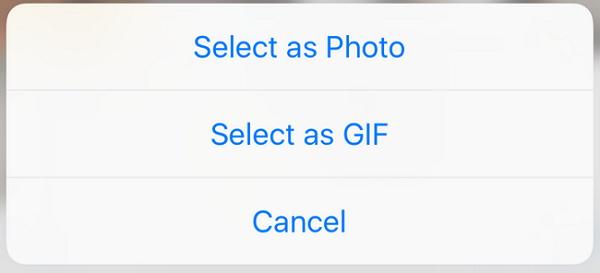
Locate the Live Photo you need to send and then press on it. When it pops out, slide upwards and then tap “Select as GIF”.


Now simply tap on the send icon to send the message.
3. How to Send Short Videso as GIF in WhatsApp on iPhone

Short videos can also be easily shared via WhatsApp as GIFs. Follow these simple steps to send a short video clip as GIF.


Launch WhatsApp and open the conversation. Click on the “+” icon and then select “Photo & Video Library” to select the video. Tap on the video.

This will bring you to the editing screen. In the top-right you should see a switch that can be used to convert the video to GIF. Click on GIF and you’ll be able to send the video as a GIF.


4. How to Add Favorite GIF into Star in WhatsApp on iPhone

If you have GIFs that you’d like to send again and again, you can add them to your Favorites in WhatsApp so they are easier to be found. Here’s how you can do that: If you accidentally deleted or lost videos on iPhone, first please check on the Recently Deleted folder. Alternatively, you can use the professional tool Gihosoft iPhone Recovery to recover deleted iPhone videos from Camera Roll or some apps.

Open any conversation in WhatsApp.


Tap and hold on any GIF and then tap on the star icon. For iPhone 6s or later, pick the GIF and swipe up to reveal the menu. Tap on “Star” to add it to favorites.


5. How to Make Your Own Animated GIFs on Your iPhone

If you don’t want to use the same GIFs for every message, you can make your own on the iPhone. Follow the following simple steps:


To create animated GIFs you need third-party apps. One of the best is GIPHY CAM. Install it on the iPhone and then launch it.


To upload the photos you want to use, tap on the Camera Roll icon. You can also record a small video to use.

You may also like:online youtube downloader

Sponsor Ads:Gihosoft Free iPhone Data Recovery is a professional iPhone Data Recovery software to get back all your lost text message, photo, video, call history, note, contact and more from iPhone/iPad/iPod Touch. It offers a full solution to recover your lost data in different tough situations. Besides recovering data directly from iPhone, iPad and iPod touch, it also allows you to recover data from iCloud and iTunes backup files.


Tap on the white arrow icon.You may also like:online youtube downloader


You can add and edit any filters and then tap “Next”.


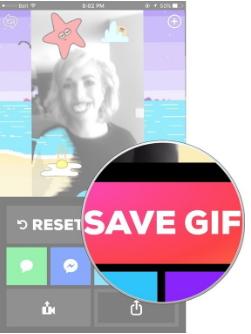
Save the GIF and you can now use the above ways to send it to your friends via WhatsApp.If you can’t sync with iTunes and want to rescue data from a disable iPhone, you could try Gihosoft iPhone Data Recovery. Also feel free to ask questions on the iDevice is disabled error in the comments section below.


Monday, 9 July 2018

Unlock Second-Hand iPhone in Recovery Mode 2018


Unlock Second-Hand iPhone in Recovery Mode

On the other hand, recovery mode can also be used to unlock second-hand iPhone. Depending on your iPhone’s model, use one of the guides below.
Step 1. Connect your second-hand iPhone to computer and open iTunes.
Step 2. While your device is connected, follow the steps below to put it into recovery mode:

For iPhone 8, iPhone 8 Plus, and iPhone X

  1. Press and release the Volume Up button quickly once.
  2. Repeat this with the Volume Down button.
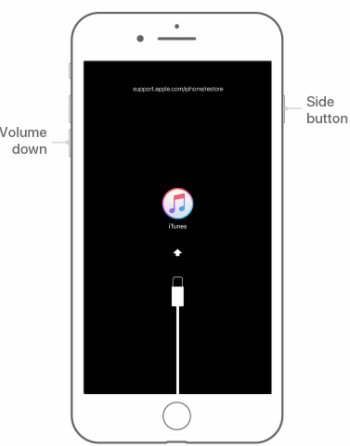
  3. Press and hold down the Side button until you see the iTunes logo.
iPhone recovery mode

For iPhone 7 and iPhone 7 Plus

  1. Press the Volume Down and Side buttons and hold them down.
  2. When you see the iTunes icon you can release them.
iPhone recovery mode

For iPhone 6S and Earlier

  1. Hold down both the Home and Top/Side buttons.
  2. After the iTunes logo appears, release the buttons.
iPhone recovery mode
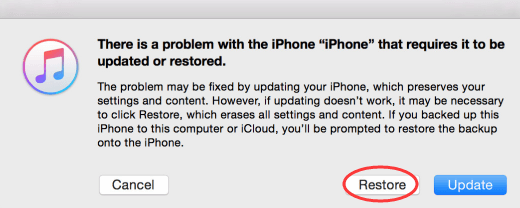
Step 3. When your iPhone is in recovery mode, you will see a window pop up on iTunes. Click “Restore”. This will download the firmware for your iPhone. If it takes over 15 minutes, your device will exit recovery mode. In this case, you need to repeat the steps 2 and 3.
restore iPhone
Step 4. Wait for it to finish. Then it’s done, you can set up your device.
Recovery mode takes longer than iMyFone LockWiper, but it still does the job.
Just like that you’ve unlocked your second-hand iPhone. There’s not much to this method and if anything is unclear, there’s plenty of guidance available.Sponsor Ads:
Gihosoft Free iPhone Data Recovery is a professional iPhone Data Recovery software to get back all your lost text message, photo, video, call history, note, contact and more from iPhone/iPad/iPod Touch.
Gihosoft Android data recovery Free is a super awesome software specialized in Android file recovery. With this program, you are able to recover deleted photos, music, videos, messages, contacts, call logs, WhatsApp messages, Viber chat history and more from Samsung, Huawei, LG, HTC, Motorola, Google, Oneplus, Sony, Lenovo, ZTE and other Android devices directly. Meanwhile, this Android data recovery software is available for both Windows and Mac platforms.


Sunday, 13 August 2017

4 killer features of iPhone 8 which will change the Smartphone industry

Apple is all set to launch the 10th edition of iPhone this year and lot is expected from the device. Today, in this article, we are going to talk about the 4 great killer features of iPhone 8. 


Bigger and bezel –less Display 
Borderless is better (and it's the future, anyway): less (bezel) means more (display). To date, big screens on the iPhone meant a big chassis. But the iPhone 8 is expected to have a much larger display (usable display area) than the 4.7-inch iPhone 7 despite being only slightly larger overall. That's due to the elimination of the bezels thanks to an edge-to-edge OLED display -- which should make the iPhone 8 pretty irresistible, even with an expected $1,000-plus price.


OLED Display  Must Read:how to delete games on ipad
Must Read:videos cache
Apple uses superb LCDs on its iPhones. But even the best LCD can't match an OLED display. I'm reminded of that every day when I switch between my iPhone 7 Plus (LCD) and Google Pixel XL (OLED). Technical niceties aside, the Pixel XL's screen is a lot more pleasing to the eye. And technically OLEDs are quickly surpassing LCDs in capabilities and quality. And, down the road, OLED iPhones will be curved and maybe even folded -- which doesn't appear to be a commercial possibility with LCDs.

Read More: These tips will help your iPhone battery last for more than a day


Face ID 
I use facial recognition on three 2017 Windows portables: it's fast and hands free. On my HP laptops it's instantaneous. If the iPhone 8 is that fast, it will be a godsend. (Note: on my tablet it's more problematic if it's not in a fixed position on a flat surface.) And other facial-recognition goodies may include the ability to "suppress notification sounds if you're looking at it," according to Guilherme Rambo, a software developer.
Smart Camera 


Let's not forget an improved camera: "Leaked" code hints at front and rear cameras capable of recording 4K video at 60 frames per second. And of course there will be other camera improvements that will continue to render stand-alone DSLRs obsolete for most consumers.

Hidden features of iOS which will help you enjoy your device more

Apple has released the iOS 11 and many of us are enjoying the new OS on our devices. If you are also one of them who has switched to iOS 11 then this article might not be relevant for you and you may close the tab or switch to a different article.


But if you are still using iOS 10 on your device and waiting for iOS 11 public update to upgrade then this post has some great information for you. In this article, we are going to talk about the some of the cool features of iOS 10 which will help you get the maximum out of your device.

Must Read: iOS 11 beta 4 reveals one of the cool features for iPhone and iPad users

Apple Mail

Fast Unsubscribe: emails with unsubscribe links will now automatically have them displayed at the top of each message with an easy to hit the button.


Unread Only: when viewing your mailbox, look for the filter icon (bottom left corner) and change the default setting to ‘Filtered by Unread’

Quick Actions: Swipe left on a message in the new threaded view and it will reveal quick actions such as a flag, reply, and trash.

Read More: These tips will help your iPhone battery last for more than a day

Camera


Don’t Stop the Music: Apple has stopped the camera mode automatically killing any music recording from the device the moment it is opened. Great if your phone is also the source of music for a party. Music still stops if you want to record a video or Live Photo.

Clock Must Read:clear search instagram

Bedtime Reminders: open the Clock app and you’ll find a new tab: ‘Bedtime’. This can be used to define the typical times you go to bed, wake up and the length of sleep you prefer. You then get reminders and along with tracking of your sleeping habits which can be viewed in the Health app.

Must ReadOne of the Biggest features of iPhone 8 has been removed


‘Close All’ Shortcuts

Safari - Close All Tabs: Quickly ditch your browser tabs on iPads with a long press on the Tab View button, which brings up the close all tabs options. iPhones require an extra step: open Tab View then long press on ‘Done’, to generate the option.

Notifications - Close All: Sick of the tiny ‘x’ on each notification? In iOS 10 you can remove them all at once with a 3D Touch iPhone. Just use a harder press on the X at the top of the list and you will get a ‘Clear All’ option. A really useful feature hidden behind the glamour or 'Rich Notifications'. Must Read:imyfone umate pro

Control Center

Quick Timer Options: bring up the Control Center and owners of 3D Touch enabled iPhones can use a harder press to bring up 1, 5, 20 and one hour instant timer options.


Calculator Memory: 3D touch the calculator icon in the Control Center and you can copy in the answer to your last calculation, saving precious time.

Camera shortcuts: just like the Camera icon on the homescreen, 3D Touch options have been extended to bring up specific shooting modes for the camera icon in the Control Center.

Apple Funds Corning With an Additional $250 Million For Next-Gen Glass Development

Apple will be awarding Corning an additional $250 million from its Advanced Manufacturing Fund. This will be on top of the $200 million fund...